

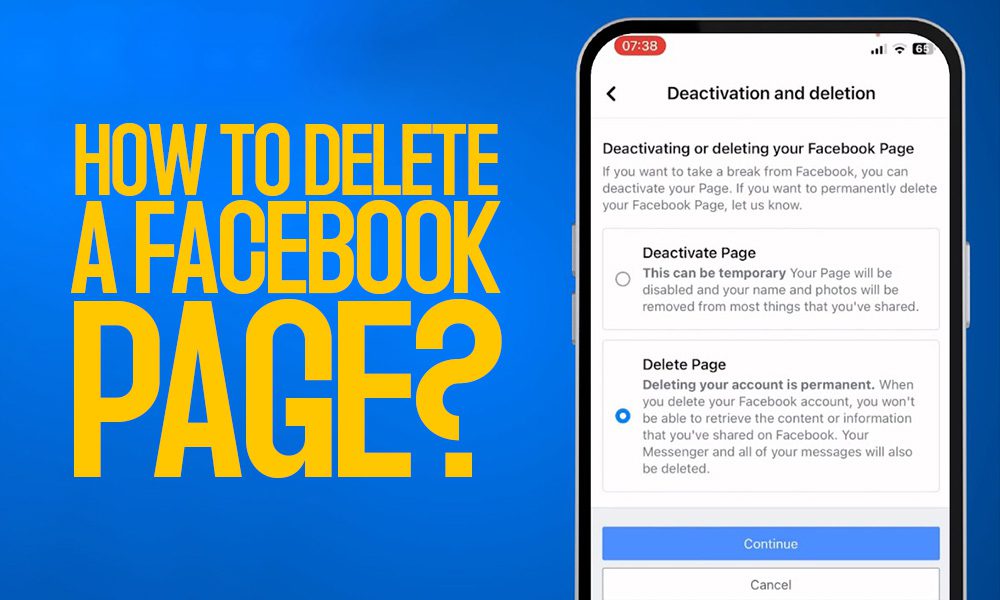
If you’ve decided to delete a Facebook Page, it’s often because the Page no longer serves a purpose. Whether it’s for a business that’s closed, an event that’s over, or simply an online presence you no longer wish to maintain, deleting a Page can feel like the right step. However, before diving into the steps, it’s important to understand what deleting a Page entail and if it’s the best choice.
Preparing to Delete Your Facebook Page
Before deleting your Page, ensure you have administrative access. Only administrators can delete Pages, so if you’re not the sole admin, reach out to others for permission or access. Also, consider downloading any important data, such as insights, photos or posts, if you’ll need them for future reference. Lastly, explore alternative options like unpublishing, transferring ownership or even boosting engagement by buy Facebook Page likes. This can be a quick way to grow your audience and increase engagement, making deletion less necessary if you’re aiming to improve reach without a complete shutdown.
Difference Between Deleting and Unpublishing a Facebook Page
When it comes to making a Page inactive, you have two choices: deleting or unpublishing. Deleting a Page permanently removes all content, followers and data. While unpublishing keeps the Page hidden from public view but accessible to admins. Unpublishing is a good choice if you think you might need the Page later or want to revisit it in the future.
Pros of Deleting:
- Permanent and removes all traces of the Page.
- Clears up your digital presence.
Pros of Unpublishing:
- Retains followers and data for later use.
- Allows you to reactivate the Page if you change your mind.
How to Delete A Facebook Page from Browser
Step 1: Access Your Facebook Page: To begin, log into your Facebook account and go to the specific Page you want to delete. You’ll find your Pages in the left-hand menu on the Facebook homepage under “Pages”, Click on 3-dots and click “Switch Now”.
Step 2: Go to Settings: Once on your Page, locate the Settings button, typically found in the bottom left of your Page interface.
Step 3: Access and Control: In the Settings menu, you’ll see various sections on the left-hand side. Click on the “Access and control” tab under “Your information”.
Step 4: Confirm the Deletion Process
Select Delete Page and Continue. Facebook will confirm your decision. Remember, Facebook provides a 14-day grace period, during which you can cancel the deletion if you change your mind. However, after 14 days, the Page will be permanently deleted, and recovery will be impossible.
Reversing the Deletion within 14 Days
If you decide to keep the Page within the 14-day period, you can go back to the Page and select Cancel Deletion to reverse the process. This grace period is a useful feature for anyone who has second thoughts or realizes they may need the Page again.
Deleting Facebook Pages from Mobile App
The deletion process on the Facebook mobile app is slightly different:
- Open the Facebook app and switch to the Page you want to delete.
- Tap on Top right corner of your Page Profile Picture and tap on the Settings
- Scroll down to find Access and control under Your Information.
- Tap on Deactivation and deletion and select Delete Page.
- Confirm your decision to delete, just like on the desktop version.
Things to Remember Before Deleting
Deleting a Facebook Page is permanent, so double-check all necessary details. Download important content and consider the impact on your followers. If it’s a business Page, inform your audience about any alternative ways they can contact you.
Conclusion: Delete a Facebook Page
Deleting a Facebook Page is a straightforward process if you follow these steps. Just remember, Facebook provides a grace period to cancel the deletion, but after that, the removal is permanent. Take some time to weigh your options, as unpublishing or transferring ownership can be viable alternatives.
Frequently Asked Questions (FAQs) on Facebook Page Deletion
Q1: Can I recover a deleted Facebook Page after 14 days?
A1: No, once the 14-day grace period expires, the Page is permanently deleted.
Q2: Will my followers be notified if I delete the Page?
A2: No, followers aren’t directly notified of deletions, but they will no longer see the Page in their feed or search results.
Q3: Can I delete a Page I don’t own?
A3: Only administrators with full access can delete a Facebook Page.
Q4: Does deleting a Facebook Page delete the content permanently?
A4: Yes, all posts, images and data associated with the Page are permanently deleted.
Q5: What happens to the username if I delete a Page?
A5: The username becomes available for other users to claim after the Page is deleted.